> For the complete documentation index, see [llms.txt](https://help.security.gallagher.com/command-centre/llms.txt). Markdown versions of documentation pages are available by appending `.md` to page URLs; this page is available as [Markdown](https://help.security.gallagher.com/command-centre/command-centre-web-releases/2024/november.md).
# November
**Date Released:** 19/11/2024
### New Feature – Cardholder Deletion in Command Centre Web
We have now added the ability for you to delete cardholders directly in Command Centre Web, providing a convenient way to keep your records up-to-date. This feature is available on both desktop and tablet devices, with support for mobile coming soon.
To be able to delete cardholders, users will require the appropriate privileges.
#### **To Delete a Cardholder:**
Access the cardholder: Go to the Cardholder Search page and locate the cardholder you wish to delete.

Open the overflow menu: Click the overflow menu ⋮ beside the cardholder's image to access additional options.
Delete the cardholder: If you have deletion privileges, the Delete option will be enabled. Select Delete to initiate the removal process.
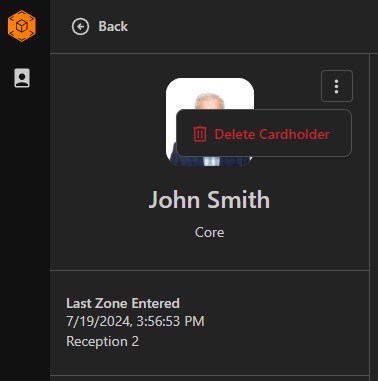 Confirm deletion: A confirmation prompt will appear. Select Confirm to continue.

Completion: After deletion, you will be returned to the Cardholder Search page.

#### Looking Ahead
Currently, the ability to delete cardholders on mobile is not available, but we are considering it for future updates. We’ll keep you informed of any new developments on this feature.
### Other enhancements
#### **Credential icons update**
We have updated the credential icons to better reflect the different types of credentials we support. Notably, an Apple Wallet credential now has its own icon.
#### **Simplified credentials display**
The information displayed for digital credentials has been simplified, removing unnecessary details.

---
# Agent Instructions
This documentation is published with GitBook. GitBook is the documentation platform designed so that both humans and AI agents can read, navigate, and reason over technical content effectively. Learn more at gitbook.com.
## Querying This Documentation
If you need additional information that is not directly available in this page, you can query the documentation dynamically by asking a question.
Perform an HTTP GET request on the current page URL with the `ask` query parameter, and the optional `goal` query parameter:
```
GET https://help.security.gallagher.com/command-centre/command-centre-web-releases/2024/november.md?ask=&goal=
```
`ask` is the immediate question: it should be specific, self-contained, and written in natural language.
`goal` is optional and describes the broader end goal you are ultimately trying to accomplish on behalf of the user. GitBook uses it to tailor the answer towards what is most useful for that goal.
The response will contain a direct answer to the question and relevant excerpts and sources from the documentation.
Use this mechanism when the answer is not explicitly present in the current page, you need clarification or additional context, or you want to retrieve related documentation sections.
Confirm deletion: A confirmation prompt will appear. Select Confirm to continue.

Completion: After deletion, you will be returned to the Cardholder Search page.

#### Looking Ahead
Currently, the ability to delete cardholders on mobile is not available, but we are considering it for future updates. We’ll keep you informed of any new developments on this feature.
### Other enhancements
#### **Credential icons update**
We have updated the credential icons to better reflect the different types of credentials we support. Notably, an Apple Wallet credential now has its own icon.
#### **Simplified credentials display**
The information displayed for digital credentials has been simplified, removing unnecessary details.

---
# Agent Instructions
This documentation is published with GitBook. GitBook is the documentation platform designed so that both humans and AI agents can read, navigate, and reason over technical content effectively. Learn more at gitbook.com.
## Querying This Documentation
If you need additional information that is not directly available in this page, you can query the documentation dynamically by asking a question.
Perform an HTTP GET request on the current page URL with the `ask` query parameter, and the optional `goal` query parameter:
```
GET https://help.security.gallagher.com/command-centre/command-centre-web-releases/2024/november.md?ask=&goal=
```
`ask` is the immediate question: it should be specific, self-contained, and written in natural language.
`goal` is optional and describes the broader end goal you are ultimately trying to accomplish on behalf of the user. GitBook uses it to tailor the answer towards what is most useful for that goal.
The response will contain a direct answer to the question and relevant excerpts and sources from the documentation.
Use this mechanism when the answer is not explicitly present in the current page, you need clarification or additional context, or you want to retrieve related documentation sections.