> For the complete documentation index, see [llms.txt](https://help.security.gallagher.com/command-centre/llms.txt). Markdown versions of documentation pages are available by appending `.md` to page URLs; this page is available as [Markdown](https://help.security.gallagher.com/command-centre/command-centre-web-releases/2024/august.md).
# August
**Date Released:** 20/08/2024
### New Enhancement - Enhanced Search
We've enhanced the search functionality within Command Centre Web to make it easier for you to find cardholders.
#### **Configuring Search**
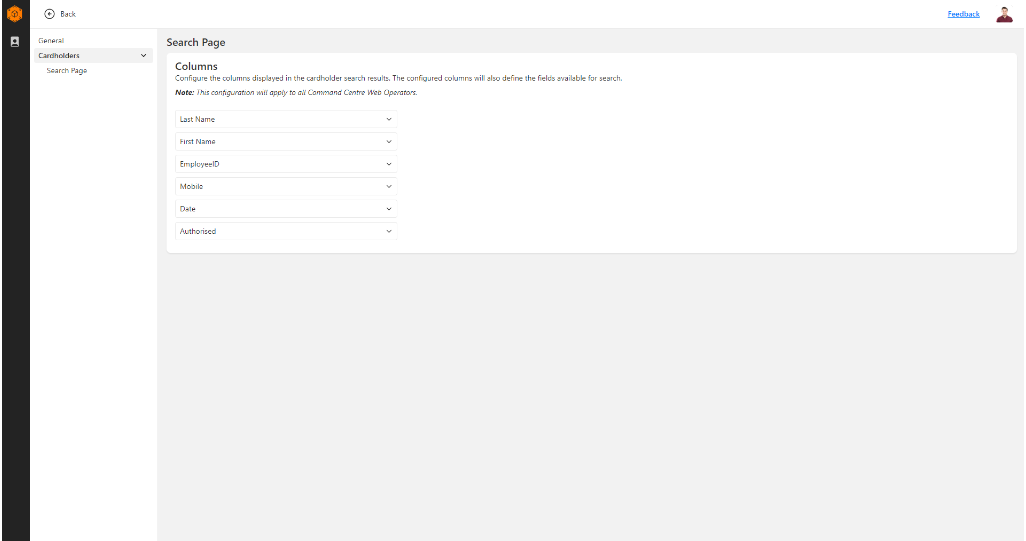
You can now add additional columns to the search area of Command Centre Web, allowing you to search for cardholders using fields such as card numbers, PDFs and more.
Configuring it is easy - simply open the Settings page and select the columns you want to search by. You can choose from any of the following:
* First Name
* Last Name
* Card Number(s)
* Description
* Last Zone Entered
* Authorised
* Division
You'll also be able to configure the standard Command Centre field.
In total, six columns can be configured to display:
* Four are visible in tablet view
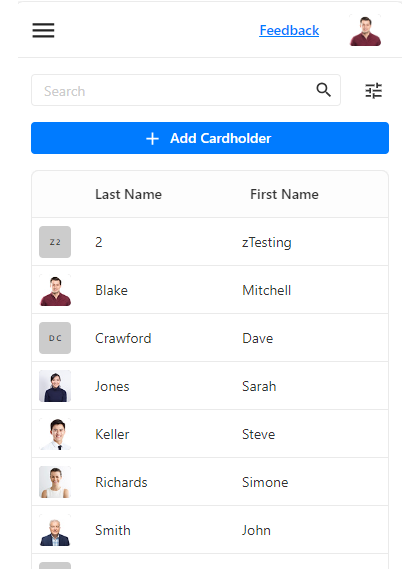
* Two are visible in mobile view
The configured search columns will apply to all operators. To configure the columns, the operator must have the Edit Site or Advanced User privileges in the root division.
#### **Using Search**
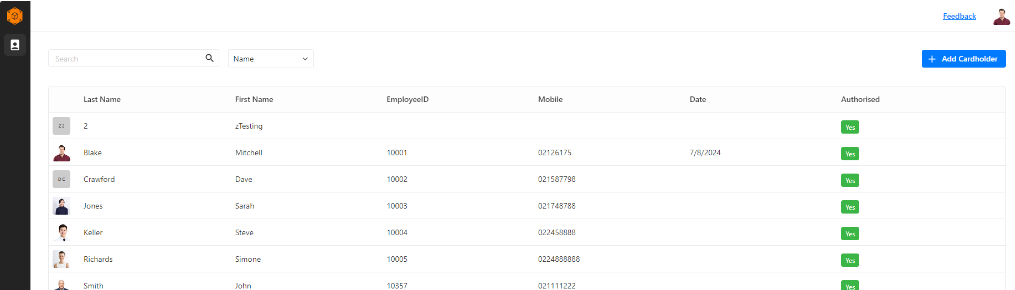
The columns configured to display in the search results will be rolled out to all operators. To display the changes, the operator may be required to refresh the page.
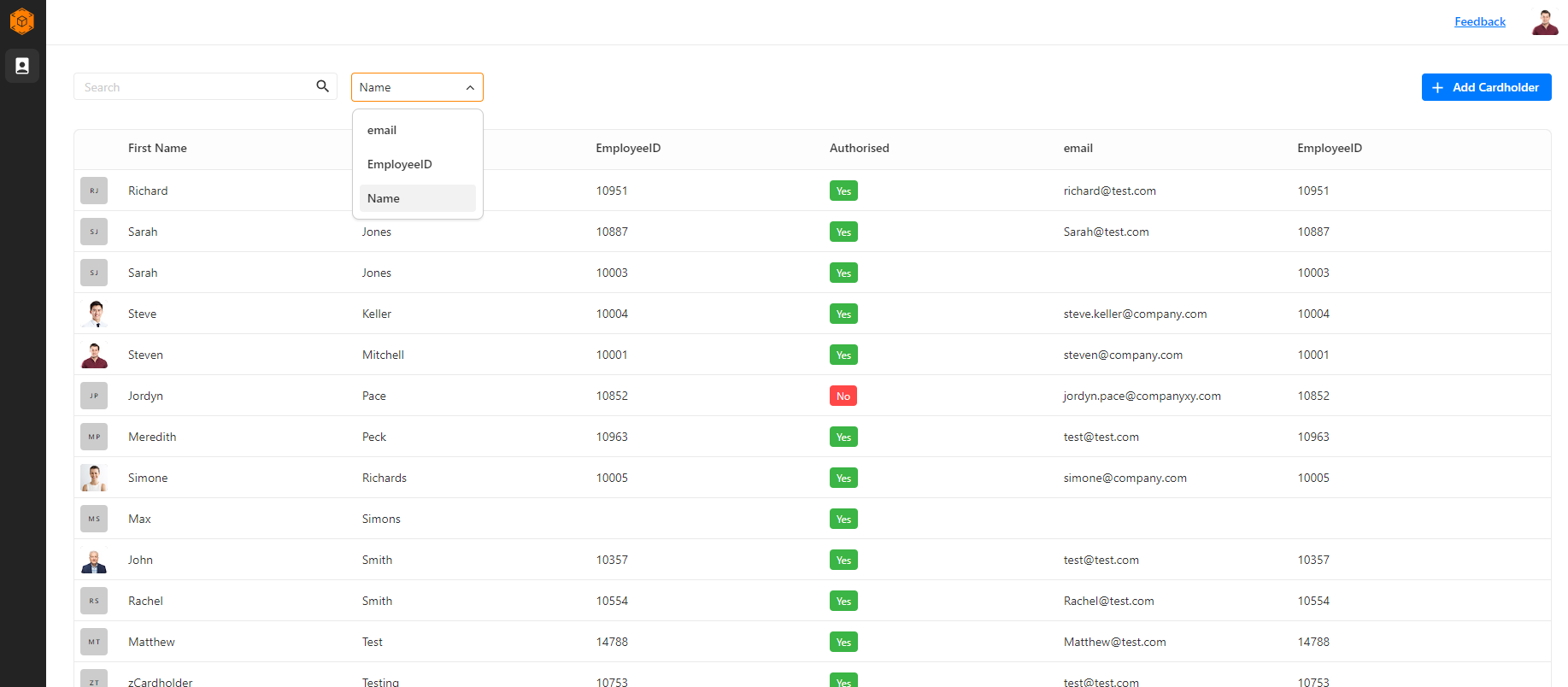
The configured columns will also be available as a selectable search criterion, excluding:
* Authorised
* Last Zone Entered
* Division
* Date field
The last used search criteria will be saved for an operator, so their preferred way of searching is remembered each time they log in.
**Desktop Search:**
**Desktop Search Filter:**
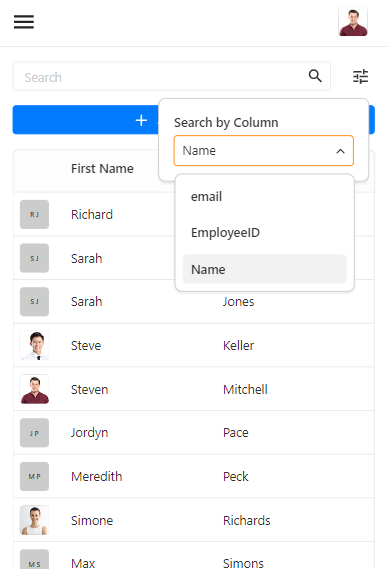
**Mobile Search:**
**Mobile Search Filter:**
---
# Agent Instructions
This documentation is published with GitBook. GitBook is the documentation platform designed so that both humans and AI agents can read, navigate, and reason over technical content effectively. Learn more at gitbook.com.
## Querying This Documentation
If you need additional information that is not directly available in this page, you can query the documentation dynamically by asking a question.
Perform an HTTP GET request on the current page URL with the `ask` query parameter, and the optional `goal` query parameter:
```
GET https://help.security.gallagher.com/command-centre/command-centre-web-releases/2024/august.md?ask=&goal=
```
`ask` is the immediate question: it should be specific, self-contained, and written in natural language.
`goal` is optional and describes the broader end goal you are ultimately trying to accomplish on behalf of the user. GitBook uses it to tailor the answer towards what is most useful for that goal.
The response will contain a direct answer to the question and relevant excerpts and sources from the documentation.
Use this mechanism when the answer is not explicitly present in the current page, you need clarification or additional context, or you want to retrieve related documentation sections.
 **Desktop Search Filter:**
 **Mobile Search:**
 **Mobile Search Filter:**
 ---
# Agent Instructions
This documentation is published with GitBook. GitBook is the documentation platform designed so that both humans and AI agents can read, navigate, and reason over technical content effectively. Learn more at gitbook.com.
## Querying This Documentation
If you need additional information that is not directly available in this page, you can query the documentation dynamically by asking a question.
Perform an HTTP GET request on the current page URL with the `ask` query parameter, and the optional `goal` query parameter:
```
GET https://help.security.gallagher.com/command-centre/command-centre-web-releases/2024/august.md?ask=
---
# Agent Instructions
This documentation is published with GitBook. GitBook is the documentation platform designed so that both humans and AI agents can read, navigate, and reason over technical content effectively. Learn more at gitbook.com.
## Querying This Documentation
If you need additional information that is not directly available in this page, you can query the documentation dynamically by asking a question.
Perform an HTTP GET request on the current page URL with the `ask` query parameter, and the optional `goal` query parameter:
```
GET https://help.security.gallagher.com/command-centre/command-centre-web-releases/2024/august.md?ask=